How to Manage Bookings Across Multiple Locations

How to Manage Bookings Across Multiple Locations Running one location is complicated enough. Add a second, third, or tenth, and appointment scheduling becomes exponentially harder. Staff work different hours at different branches. Clients book at one location when they meant to book at another....

How to Manage Bookings Across Multiple Locations

How to Manage Bookings Across Multiple Locations

Running one location is complicated enough. Add a second, third, or tenth, and appointment scheduling becomes exponentially harder. Staff work different hours at different branches. Clients book at one location when they meant to book at another. Reporting is scattered across separate calendars. And one overworked manager is trying to keep it all straight.

The businesses that manage multi-location booking well share a common approach: they centralize the system while localizing the experience. One platform manages all locations, all staff, and all appointments, but each location has its own booking page, its own hours, and its own identity.

This guide covers how to set up and manage a booking system that works across multiple locations without creating scheduling chaos.

The Core Problem: Fragmented Scheduling

Most multi-location businesses start with a single-location booking tool and duplicate it when they open a second branch. This creates immediate problems.

Separate calendars mean no cross-visibility. The manager at Location A cannot see Location B's availability without logging into a separate account. Staff who work at both locations risk double-bookings because neither system knows about the other.

Clients book the wrong location. If your booking links look similar, clients accidentally book at a branch across town. This creates frustration, cancellations, and wasted slots.

Reporting is manual. Pulling a business-wide view of bookings, revenue, no-show rates, or staff utilization requires exporting data from each location and combining it in a spreadsheet. This is time-consuming and error-prone.

Branding is inconsistent. When each location manages its own booking page independently, logos, descriptions, and policies drift apart over time.

The fix is a single booking platform that supports multiple locations natively, not separate accounts cobbled together.

What to Look for in Multi-Location Booking Software

Not all booking tools handle multiple locations well. Some charge per location. Others treat each branch as a completely separate account. The features that matter most:

Centralized dashboard. One login where you can view and manage appointments, staff, and settings across all locations. This is non-negotiable for any business with more than two branches.

Location-specific booking pages. Each location should have its own booking page with its own address, hours, services, and staff, while still being part of the same system. Clients should be able to choose their location at the start of the booking process.

Cross-location staff management. Staff who work at multiple branches need their schedules to sync automatically. If a therapist works at Location A on Monday and Location B on Wednesday, the system should block their availability at the other location on the relevant days without manual intervention.

Unified reporting. Revenue, bookings, no-shows, popular services, and staff performance should be reportable per location and across all locations from a single dashboard.

Consistent policies with local flexibility. Cancellation policies, payment rules, and reminder settings should be configurable per location while defaulting to a company-wide standard.

Pricing that scales. Some tools charge per location, which gets expensive fast. Look for platforms that include multi-location support in their pricing without multiplying the base cost for each branch. SimplyBook.me's multi-location feature lets you manage all branches from one account.

Setting Up Multi-Location Booking: Step by Step

Step 1: Add your locations. In your booking platform, create an entry for each physical location. Include the full address, phone number, and any location-specific details (parking instructions, entrance notes). Each location needs accurate address data for Google Business Profile integration and local SEO.

Step 2: Set location-specific working hours. Each branch likely has different operating hours. Set these independently. If your downtown location opens at 7am for early commuters and your suburban branch opens at 9am, configure each accordingly.

Step 3: Assign staff to locations. Map each team member to the locations where they work. For staff who rotate between branches, define their schedule at each location by day of the week. The system should automatically show them as available only at their assigned location on each day.

Step 4: Configure services per location. If all locations offer the same services, you can apply a service list globally. If some branches offer services others do not (for example, only your flagship location offers premium treatments), configure the service list per location.

Step 5: Create location-specific booking pages. Each branch should have its own booking URL and its own customized booking page. Include the location address prominently and, if possible, an embedded map. Clients need to know exactly which branch they are booking at.

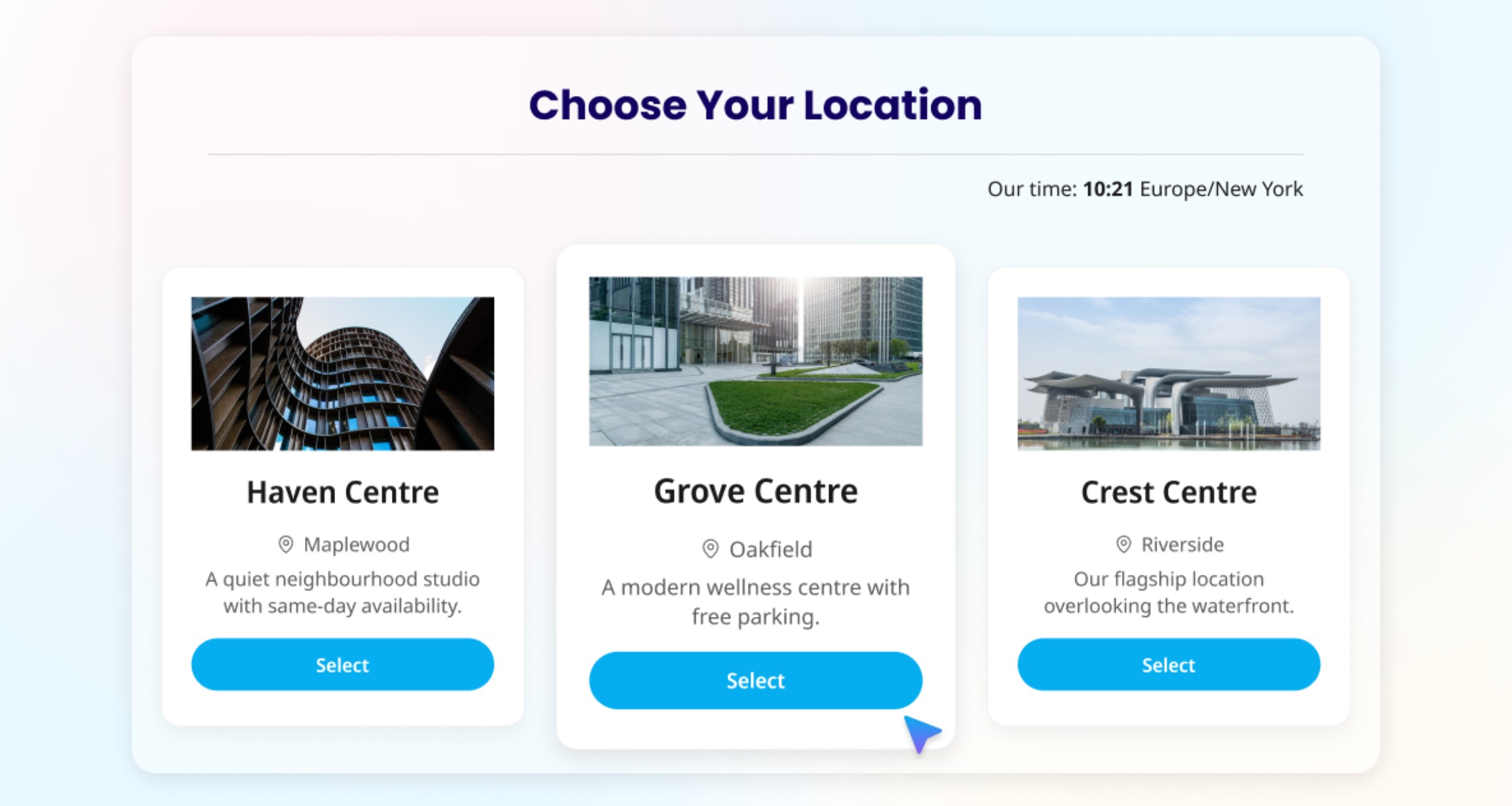
Step 6: Set up a location selector. If your business has a single entry point (one website or one booking link), configure a location selector at the start of the booking flow. The client chooses their preferred location first, then sees only the services, staff, and availability for that branch.

Step 7: Connect each location to Google Business Profile. Each physical location should have its own Google Business Profile with a direct booking link to that branch's booking page. This ensures clients who find you via Google Maps book at the correct location.

Managing Staff Across Locations

Staff scheduling is the single biggest pain point in multi-location booking. Here is how to handle the most common scenarios.

Staff who work at one location only. This is the simplest case. Assign them to their location and their availability is limited to that branch. No cross-scheduling conflicts.

Staff who rotate between locations. Define a weekly rotation schedule. For example: Location A on Monday, Tuesday, Wednesday; Location B on Thursday, Friday. The booking system should automatically show them at the correct location each day and block them at the other.

Staff who cover shifts across locations. Sometimes a team member fills in at a different branch on short notice. You need the ability to quickly reassign them to a different location for a specific day without changing their default schedule.

Managing overtime and overcommitment. When a staff member works at multiple locations, it is easy to accidentally schedule them beyond their contracted hours. Set maximum daily and weekly hours in the system to flag when an assignment would create overtime.

Client continuity. When possible, let clients book with the same provider across locations. A client who sees therapist James at Location A should be able to find and book with James at Location B if they prefer. The booking system should show James's availability across all his assigned locations when a client selects him.

Client Experience: Making Location Selection Effortless

A confusing location selection process leads to wrong-location bookings, cancellations, and client frustration. Make it foolproof.

Show the full address at every step. The location name alone is not enough. "Downtown Branch" means nothing if the client does not know the street. Display the full address on the location selector, the booking confirmation, and every reminder.

Use maps. Embed a small map or link to Google Maps for each location on the booking page. Visual confirmation prevents errors.

Default to the nearest location (if possible). Some booking tools can detect the client's approximate location and default to the closest branch. This is not essential but reduces friction for multi-location businesses in the same metro area.

Include location in every communication. The booking confirmation, every reminder, and the follow-up message should include the branch address. Repeating the location at every touchpoint catches any confusion before the client drives to the wrong place.

Allow easy location switching. If a client realizes they booked the wrong branch, the reschedule flow should let them switch locations without canceling and rebooking from scratch.

Reporting and Performance Tracking

Multi-location reporting turns raw booking data into operational intelligence. The metrics to track:

Bookings per location per week. This is your baseline utilization metric. Comparing bookings across branches reveals which locations are underperforming and may need marketing support or schedule adjustments.

No-show rate per location. No-show rates often vary significantly by branch. A location near a transit hub may have higher no-shows than a suburban branch with dedicated parking. Identify the branches with the highest rates and apply targeted interventions (deposits, extra reminders).

Revenue per location. Track top-line revenue and revenue per available appointment hour. A branch with fewer bookings but higher-value services may outperform a busier branch on revenue per hour.

Staff utilization. What percentage of each staff member's available hours are booked? Low utilization at one location and overbooking at another suggests a scheduling rebalance.

Popular services by location. Service demand often varies by branch. Your downtown location may see higher demand for quick lunchtime services, while your suburban branch skews toward longer, premium appointments. Use this data to tailor your service offerings per location.

Client retention by location. Are clients returning to the same branch? If a location has low return rates, investigate the client experience there.

Pull these reports monthly and compare trends across locations. The goal is not just tracking numbers but finding actionable differences between branches that drive decisions.

Common Multi-Location Mistakes

Using separate accounts per location. This is the most damaging mistake. Separate accounts mean separate data, separate logins, and no cross-visibility. Always use a single platform with native multi-location support.

Forgetting to update hours for holidays at every location. If your booking system requires you to set holidays per location, missing one branch means clients can book during a closure. Set company-wide holidays first, then adjust per location if some branches have different closure schedules.

Not connecting each location to Google Business Profile. Each physical branch needs its own Google Business Profile with the correct booking link. Without this, clients who find you on Google Maps cannot book at their nearest location directly.

Assuming all locations need identical services. Client demand varies by area, demographics, and competition. Review service performance per location quarterly and adjust offerings accordingly.

Ignoring timezone differences. If your locations span timezones (common for franchise or regional businesses), confirm that your booking system handles timezone conversion correctly. A client in Central Time booking at a location in Eastern Time should see Eastern Time availability.

Frequently Asked Questions

What is the best booking software for multiple locations?

The best multi-location booking software offers a centralized dashboard, location-specific booking pages, cross-location staff scheduling, unified reporting, and pricing that does not multiply per branch. SimplyBook.me supports multi-location management from a single account. Other platforms that handle multiple locations include Square Appointments (at the Plus tier, $29/month per location as of March 2026) and Fresha (for beauty and wellness only).

How do I prevent clients from booking at the wrong location?

Display the full address (not just the branch name) at every step of the booking process. Embed maps on location-specific booking pages. Include the address in the booking confirmation and every reminder. Use a clear location selector at the start of the booking flow if you have a single entry point.

Can staff work at multiple locations in the same booking system?

Yes, with the right software. Most multi-location booking platforms let you assign staff to multiple branches with location-specific schedules. The system automatically shows staff availability at the correct location on each day and prevents double-bookings across branches.

How do I manage different services at different locations?

Configure your service list per location. Most booking platforms let you assign services globally (all locations) or per branch. This lets you offer specialized services at specific locations while maintaining a common set of core services across all branches.

Should I use separate booking links for each location?

Yes. Each location should have its own booking page URL and its own Google Business Profile with a direct booking link. This ensures clients who find a specific branch online are taken directly to that branch's booking page.

How do I compare performance across locations?

Use your booking platform's reporting to track bookings per location, revenue per location, no-show rates per branch, staff utilization, and popular services by location. Pull these reports monthly and compare trends to identify underperforming branches and top performers.

Unlock exclusive content

Get booking tips, product updates, and inspiring stories to help you grow your service business — straight to your inbox